
Web Design and Development
Mobile-Friendly Web Design: Real Tasks on Small Screens
Evaluate mobile web design through navigation, forms, touch targets, images and real-device testing. Plan clear journeys that work on small screens.
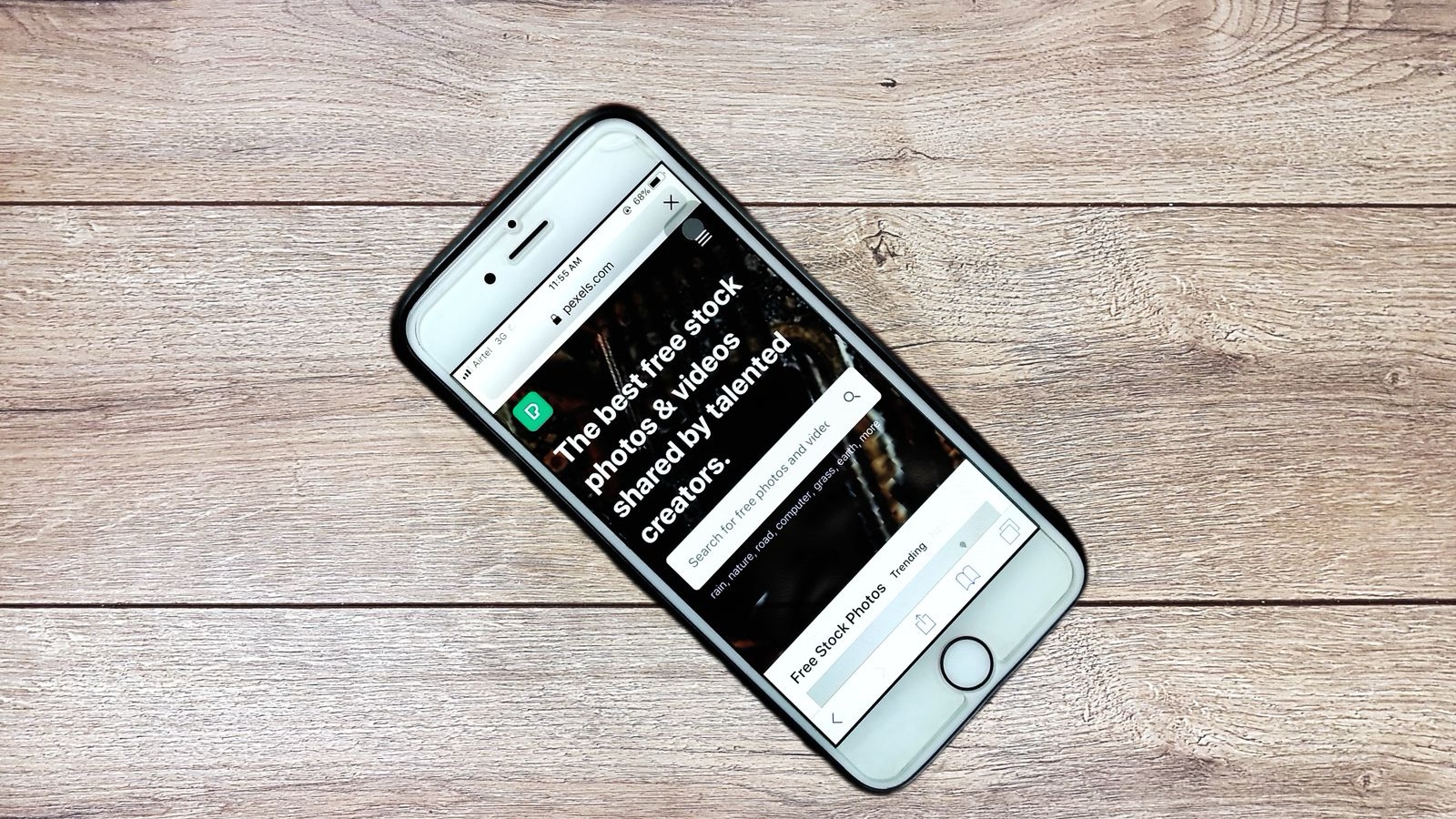
You open a service menu on a phone and long descriptions push the option you need below the visible area. At the enquiry form, the keyboard hides the next action. Nothing overflows horizontally, but completing the task is awkward. This is where mobile-friendly design needs closer examination. A layout that fits still has to support choosing, reading and submitting information. Observing those activities reveals problems that polished screenshots can leave invisible.
Separate visual review from task review. The first examines how a layout appears at selected widths. The second checks comprehension, interaction and recovery. Both belong in a website project. The approach below focuses on practical mobile decisions for service websites, including navigation, forms, images and acceptance testing. Any scenarios described are hypothetical illustrations, not claims about completed client work.
Define the mobile tasks before reviewing screens
List the activities visitors should be able to complete on a phone: understand a service, inspect a project, make an enquiry or choose a contact channel. For each task, identify the starting point, necessary information and successful outcome. This makes approval more precise than a general statement that the site looks good on mobile.
For example, someone moving from a service page to an enquiry needs enough information to judge suitability first. A prominent contact button cannot replace that explanation. Write test instructions without revealing where to tap. If an observer continually points out the next step, the exercise measures the observer’s guidance rather than the interface. Allow the participant to interpret labels, content and feedback independently.
Adapt content priorities as well as columns
Responsive layouts change how elements fit different viewports. They also need a coherent reading sequence. An image placed beside explanatory text on desktop may move far above it on a phone, leaving the visitor without context. Review the relationship between the heading, explanation, evidence and action in each section rather than approving the mobile version solely because columns stack correctly.
Google’s mobile-first indexing guidance explains the role of mobile content and recommends responsive design. As an editorial decision, reorganising important service information is generally more coherent than removing it from phones altogether. This does not guarantee search rankings. It helps ensure that people using different devices can still answer the same essential questions about the business.
Keep the mobile menu focused on navigation
An open menu should make the main routes easy to distinguish. Long descriptions, repeated promotional text and numerous cards can turn navigation into a second content page. Where service names are clear, a compact list of headings and appropriate subcategories may work better. Detailed explanations remain on service pages. Making the menu compact does not require making its touch controls tiny.
Check opening, closing and focus behaviour
The menu trigger, close control and expanded state should be understandable. Test what happens after rotating the screen, moving to another page and using the browser’s back function. If the underlying page scrolls unexpectedly, people may lose their position. Keyboard users should retain a meaningful focus position and should not encounter controls hidden inside a closed menu. The interaction model deserves the same attention as the visual arrangement.
Make language and contact choices discoverable
A language option placed at the bottom of a long menu may be difficult to find. A clearly labelled choice beside the menu control can be considered during header planning. Define where the choice leads and what happens when the current page has no equivalent translation. A link should not imply that translated information exists when its destination contains unrelated content.
Telephone and messaging controls should also state their purpose. Multiple floating contact buttons, consent notices and bottom action bars can leave little room for actual content. Review these components together, including the situation where several are open simultaneously. Check whether they hide a paragraph, a form field or the submission button. Visitors need space to evaluate information before choosing to contact the business.
Review the active target, not just its visible icon
A small icon may sit inside a generous interactive area. Conversely, a large-looking card may only respond when its narrow text label is touched. Inspect the actual active region. Where neighbouring controls are easily confused, spacing and target size should be considered together. A visual review cannot establish this reliably without trying the interaction.
Review active targets against applicable minimum-size conditions, surrounding spacing and the relevant exceptions. It should not be reduced to one universal button dimension applied without context. Evaluate the relevant conditions alongside practical comfort. Small menu arrows, close controls and inline form actions deserve particular attention because they can become obstacles in otherwise well-designed journeys.
Test forms with the mobile keyboard open
A form that works on desktop may behave differently once a software keyboard occupies much of the screen. Labels, guidance or the next action can disappear from view. Appropriate input types and browser completion support may reduce effort, but they need testing on actual devices. Do not rely on disappearing placeholder text as the only explanation of what a field requires.
Error messages should help people identify and correct the relevant input. A general warning at the top is insufficient when the problematic field remains far outside the visible area. Check that valid information is not unnecessarily erased after an unsuccessful submission. A successful enquiry also needs clear confirmation. Uncertainty about whether a message was sent can lead to repeated submissions and avoidable follow-up work for both parties.
Preserve reading rhythm in text and card lists
Paragraphs occupy more vertical space on narrow screens. The response should be meaningful headings and focused paragraphs rather than indiscriminate deletion of useful information. Each section should answer a recognisable question. Brief but vague slogans are not automatically easier to understand than a concrete explanation, particularly when someone is comparing a professional service.
Blog and project lists need consistent image areas, spacing and heading behaviour. However, forcing everything into a fixed height can hide important titles or break when text is enlarged. Test longer headings, genuine translations and larger text settings. A design that only works with the shortest sample copy is not ready for a changing editorial library. Content rules should protect coherence without making distinct articles indistinguishable.
Choose images for their purpose on small screens
An entire desktop dashboard reduced to a small card may lose nearly every readable detail. That can be acceptable if the purpose is to communicate a general product appearance. If the image explains a particular function, a focused crop may be necessary. Review the subject at the intended display size rather than assuming a high-resolution source will remain informative after reduction.
Cropping also affects faces, product features and text embedded in images. Define how each image should behave when its container changes. File dimensions and delivery matter as well: sending the largest desktop asset to every phone can create unnecessary transfer. The implementation can provide suitable alternatives, while editors receive clear upload guidance. Without that guidance, later content may undo a carefully prepared initial layout.
Check collisions between persistent interface layers
A fixed header may cover a section reached through an in-page link. A bottom action bar may obscure the final form field. An open menu and a notification can compete for the same space. These combinations need inspection on the running website. Components working correctly in isolation do not establish that they work correctly together.
Try landscape orientation, text enlargement and browser zoom where applicable. Consider whether nonessential motion interferes with reading or creates discomfort. If a continuously moving section prevents attention to the explanation, simplify its presentation. Visual interest should be discussed in relation to the task. Making an interface noticeable is not the same as making it usable, and a decorative interaction should not conceal essential information.
Connect performance findings to real tasks
Mobile connection quality and device capability vary. Initial loading is only one consideration. Menus need to respond, forms need to become usable and image loading should not unexpectedly move the control someone is about to select. A performance report can identify areas for investigation, but a single score does not describe every interaction problem.
Imagine a hypothetical service page that appears quickly while its enquiry control waits for a separate component. The visitor still experiences delay. Removing every image may not address that dependency. Combining technical measurement with task observation helps the team investigate the relevant cause. A mobile website development scope can explicitly include content order, interaction checks and technical performance review instead of treating them as unrelated extras.
Make acceptance testing repeatable
Record the task, device, browser, observed result and issue priority. Testing every possible combination is unrealistic, but representative layout ranges and real devices can be selected deliberately. Written conditions make a later review repeatable. A note saying only “mobile checked” does not reveal whether anyone tried opening the menu, correcting a form error or navigating through a long translated page.
Prioritise problems by their effect on completion. A form that cannot submit should be addressed before a minor spacing variation. After a correction, inspect neighbouring components as well: changing menu height may affect the header and visible content. New editorial material can introduce fresh problems after launch. A web design and development plan should assign responsibility for those continuing checks rather than assuming mobile quality remains unchanged forever.
Frequently asked questions
Does mobile-friendly automatically mean easy to use?
No. Fitting the viewport is an initial layout check. Menu comprehension, form completion and recovery from errors need separate evaluation. A page can avoid overflow while still preventing people from finding important information or understanding what to do after an unsuccessful action.
Can mobile service menus show headings without descriptions?
Yes, when the names communicate the available choices clearly. Keep detailed explanations on destination pages. If similar labels remain difficult to distinguish, reconsider the naming or grouping. Removing text alone will not solve an underlying information architecture problem.
Do phones need a separate website?
Not necessarily. Responsive design can adapt a shared address and content structure to different screens. The existing system, functions and maintenance requirements should inform the decision. Separate versions introduce additional responsibilities for keeping content and behaviour consistent across devices.
Should two action buttons always sit beside each other?
Only when their labels remain understandable and their active areas have adequate space. Stacking may be more appropriate on a narrow screen. Evaluate the actual controls and text rather than copying the desktop arrangement into every viewport. Translations and enlarged text can change the result.
Is a real phone necessary for testing?
A narrow browser preview is useful, but it may not represent software keyboards, touch behaviour and device-specific interactions fully. Testing important journeys on real hardware therefore adds valuable evidence. Choose the device sample according to the expected audience and the agreed project scope.
Can new article images damage the mobile layout?
Yes. Different proportions, oversized files and unsuitable crops can disrupt card lists. Shared image rules and an editorial upload guide help control this. Review published examples on a phone rather than relying exclusively on how they appear inside the administration panel.